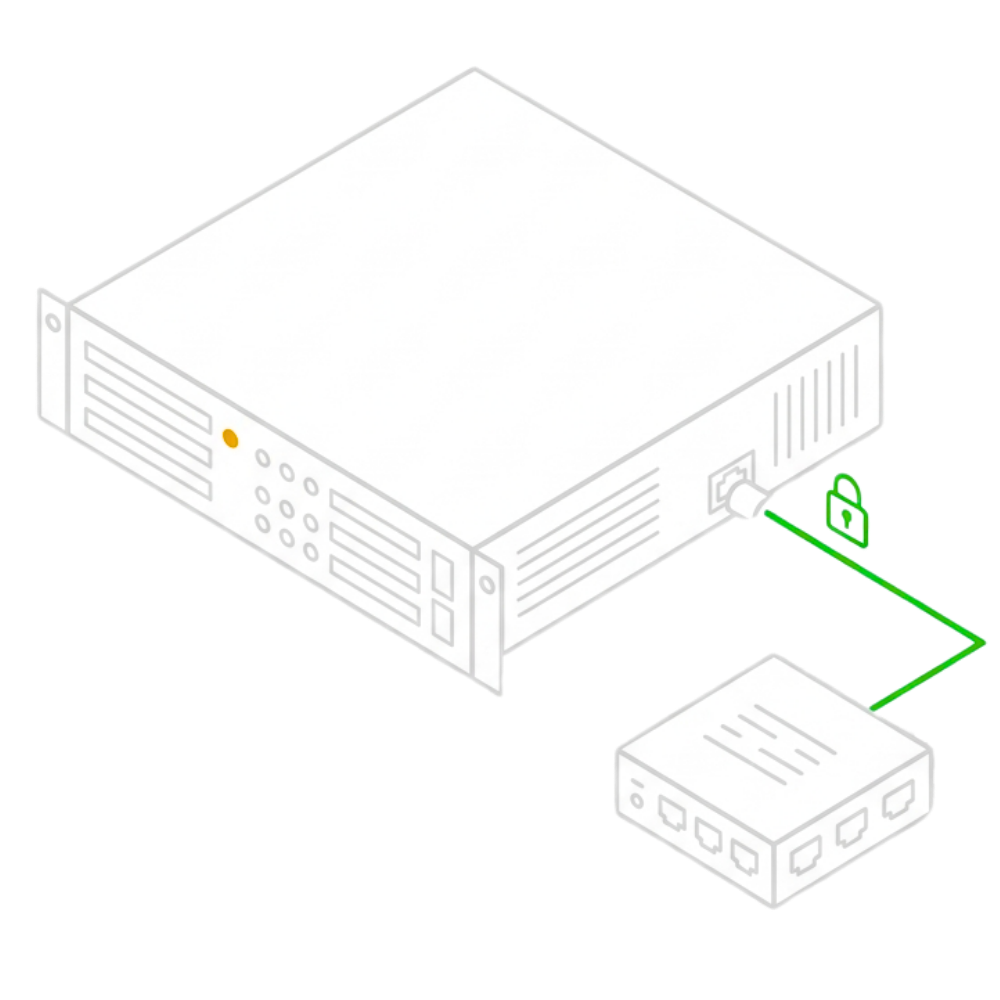
Here is how to configure static IP on Debian. By default, your server gets its IP address from DHCP. That works, until a reboot or a network change hands it a different address, and anything that depended on the old IP (firewall rules, DNS records, SSH scripts) breaks. A static IP fixes that once and for all.
Why a static IP matters
Debian has a reputation for running unattended on servers for years without a reboot. That is exactly when DHCP becomes a liability instead of a convenience: the one time the server does restart (a power outage, a kernel update, a datacenter maintenance window), it might come back with a different address than the one every cron job, firewall rule, and monitoring check expects.
Setting a static IP removes that uncertainty. The address you configure is the address your server keeps, reboot after reboot, for as long as it runs.
What you need
- A Hostner dedicated server running Debian
- Root or sudo access via SSH
- Your server’s IP address, netmask, and gateway (find these in your Hostner dashboard)
Step 1: Find your network interface
Log in via SSH, then run:
~ $ ip a
Look for the interface that is not lo (that one is just the local loopback). It is usually named something like ens18 or eth0. Note the name, you need it in the next step.
Step 2: Configure static IP on Debian
Open the network configuration file:
~ $ sudo nano /etc/network/interfaces
Find the block for your interface. It probably starts with auto and uses dhcp. Replace it with the static configuration below. The Debian Wiki’s network configuration page covers more advanced setups (bonding, VLANs) if your setup goes beyond a single static address.
~ $ auto ens18 ~ $ iface ens18 inet static ~ $ address YOUR_IP ~ $ netmask 255.255.255.0 ~ $ gateway YOUR_GATEWAY ~ $ dns-nameservers 8.8.8.8 1.1.1.1
Replace ens18 with your actual interface name, and YOUR_IP / YOUR_GATEWAY with the values from your Hostner dashboard. Leave the loopback (lo) block untouched. Save the file and exit.
Step 3: Restart networking
Apply the new configuration:
~ $ sudo systemctl restart networking
If this command hangs or the connection drops and does not come back, do not panic. Reconnect through your Hostner KVM/IPMI console instead of SSH, and double-check the values you entered.
Step 4: Confirm it worked
Run ip a again. Your interface should now show the static IP you set, not the old DHCP one. Test the connection with:
~ $ ping google.com
If it does not work
A typo in the gateway or netmask is the most common cause of a dropped connection. If SSH stops responding after the restart, use the console access in your Hostner dashboard to fix the file directly, since a wrong static IP can lock you out over the network entirely.
If the connection comes back but routing seems off (you can ping local addresses but not the internet), check that the gateway you entered actually matches your network. Run ip route to see the current routing table and compare it against the gateway from your Hostner dashboard.
No ticket needed. Once you configure static IP on Debian correctly, it stays that way through every reboot, every power cycle, and every network hiccup, so you can stop worrying about it and move on to the next thing.
Also available for: Ubuntu, AlmaLinux. See all guides in Docs.